



 |
 Minimise Case Fan Vibration
The noise generated by cooling fans can largely be attributed to vibration transmitted from the fan itself into a case chassis or case side panel rather than the fan motor noise per se. The transmitted vibration causes case resonance, which changes the vibration energy from the fan into noise (i.e. oscillating side panels). This type of 'secondary' noise generation can be reduced by decoupling (essentially 'un-joining') the fan from the case in various ways. We have achieved this by mounting the fan in isolation from the case using our unique AcoustiFan™ Ultra Soft Fan Mounts & silicone Fan Gaskets (shameful plug there - sorry).
Whatever material is used to achieve this needs to be soft and designed to absorb the vibrations transmitted from the fan motor.
 If
you can source case fans that are low vibration as well
as low motor noise in the first place - 'case amplified'
fan vibrations can be tackled 'at source' and therefore kept to a minimum.
If
you can source case fans that are low vibration as well
as low motor noise in the first place - 'case amplified'
fan vibrations can be tackled 'at source' and therefore kept to a minimum.
Install Large Fans with a Slow RPM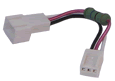 A
larger fan can revolve more slowly than a smaller one and provide the same
airflow. The lower the blade revolutions per minute (RPM), the lower the fan
motor noise, vibration, and air turbulence noise (wind noise). For those who
would like to achieve almost silent fan operation, we recommend opting for
92mm or better still, 120mm PC case fans where possible.
A
larger fan can revolve more slowly than a smaller one and provide the same
airflow. The lower the blade revolutions per minute (RPM), the lower the fan
motor noise, vibration, and air turbulence noise (wind noise). For those who
would like to achieve almost silent fan operation, we recommend opting for
92mm or better still, 120mm PC case fans where possible.
Before
you buy a case have a look at the size of fans that the case can accommodate,
and try to opt for a case that can take larger fans. However, if this is
not possible for whatever reason, then you can always opt for installing
the maximum number of smaller fans all with reduced RPM.
Positioning Case Fans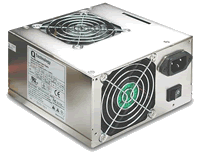 For
MAXIMUM airflow, set cooling fans to work in parallel with
each other (side-by-side) rather than in series (one in front of another).
In the majority of cases, parallel fan configurations will increase the rate
of airflow through a case over that from fans located in series. This is not
an 'absolute certainty', but in the majority of situations where the case
design allows for easy air intake - fans working in parallel will increase
air though-flow.
For
MAXIMUM airflow, set cooling fans to work in parallel with
each other (side-by-side) rather than in series (one in front of another).
In the majority of cases, parallel fan configurations will increase the rate
of airflow through a case over that from fans located in series. This is not
an 'absolute certainty', but in the majority of situations where the case
design allows for easy air intake - fans working in parallel will increase
air though-flow.
SCENARIO: If you have a Power Supply Unit (PSU) with a fan inside it and a single extra case fan. The PSU is normally expelling air from the rear of the case. Locate the single case fan also to expel air from the rear and you will have two fans working together in parallel. They will work to lower the air pressure inside the case and to draw air in from the front of the case, over internal components and then push it out from the rear of the case. The 'throughflow' will be close to the sum of the two fans. If however, you install the single case fan to draw air into the case from the front, you may only have throughflow that is just above either the PSU fan or the single case fan.
For MAXIMUM quietness, set fans to work in series! Generally, fans working in parallel will be working 'harder' than fans in series. This is because fans in parallel with each other will be working 'against' each other to an extent (both fans are trying to move air from the same low pressure area), but fans working in series will be working 'with' each other, and therefore each fan in series will be under less operational stress. The pressure gradient over fans in parallel (located side-by-side) is higher than if the same two fans were located in series, and therefore wind turbulence is also likely to be higher for fans in parallel (increased wind turbulence = noisier). If you do not require high airflow, then set your fans in series with one another and they will operate under less stress than in parallel, and generally more quietly as a result.
Optimize Installed Fans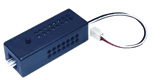 Once
fans have been located, you may like to adjust fan speeds for optimal quietness,
whilst still ensuring adequate cooling. This is nearly always a balance. There
may be some fans that can safely be disconnected - which will obviously result
in a much quieter system! Remember that some motherboard components require
at least SOME airflow to keep them cool (and your PC stable).
Once
fans have been located, you may like to adjust fan speeds for optimal quietness,
whilst still ensuring adequate cooling. This is nearly always a balance. There
may be some fans that can safely be disconnected - which will obviously result
in a much quieter system! Remember that some motherboard components require
at least SOME airflow to keep them cool (and your PC stable).
For TWO SPEEDS: perhaps the most simple and cheapest fan speed controller is an in-line fan resistor - this can be used to slow down your fans (the downside is this does generate a little extra heat, and cannot be adjusted). For THREE SPEEDS: use a fan speed cable - this uses 12VDC and 5VDC directly from the PC Power Supply (so does not generate any extra heat), and also a resistor at approx. 7.5V DC. For MULTIPLE SPEEDS: a fan speed controller may be the most convenient and flexible way to control fan RPM, such as the Zalman FanMate (available from Zalman resellers).
Always
install enough fans to adequately cool internal components! We also recommend
that you test and monitor system and component temperatures whilst re-configuring
fans.